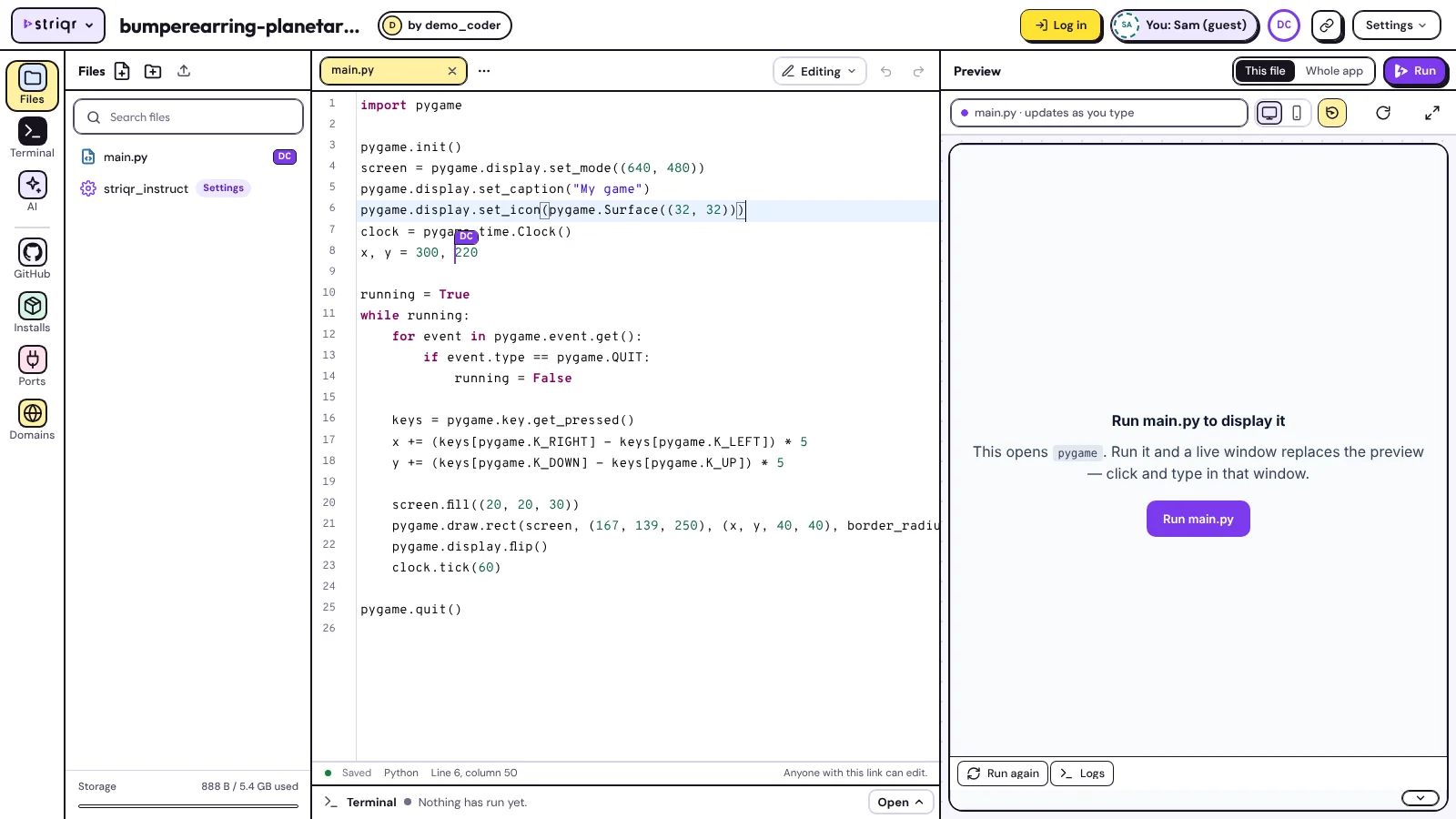
Python autocomplete in Striqr, plus editor themes
Yes. The editor now suggests Python names as you type, pygame included. You can also pick one of six editor themes and see who else is in a project.
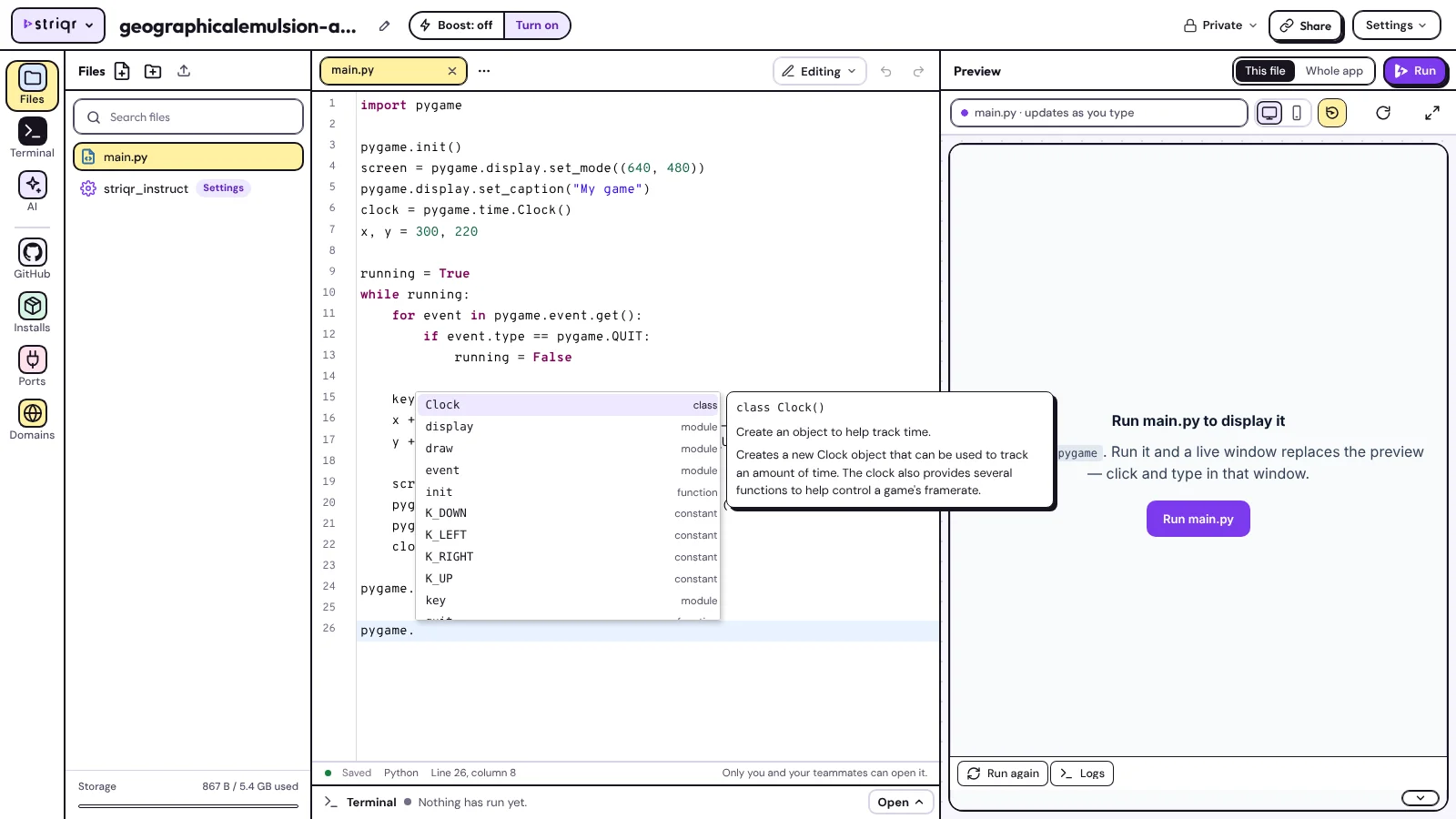
The editor now suggests Python as you type, and it knows pygame. This week you can also pick an editor theme in Settings, and see who else is in a project with you.
Python suggestions as you type
People asked for this in support. In a Python file, the editor suggests names after you type a letter or a dot. Enter or Tab puts one in, Esc closes the list, and Ctrl+Space asks for suggestions at any time.
Your file's own names come before the built-in ones, and it never adds an import for you. While a function's brackets are open, its parameters show above the line, with the one you're typing in bold. Rest the pointer on a name to see what it is.
Type pygame. and you get its modules and functions. Once you've written screen = pygame.display.set_mode(...), typing screen. lists a Surface's methods. We think that's where it helps most: making a game in the Pygame online compiler without looking up every method name.
Six editor themes
Settings → Theme now has six presets, each with a light and a dark half:
- Striqr: the editor as it is.
- Calm: soft colours, soft edges, no shadows.
- High contrast: black and white, with bold focus.
- Reading: cream paper and roomy lines.
- Clear colours: keywords bold, and nothing told apart by colour alone.
- Arcade: bright, just for fun.
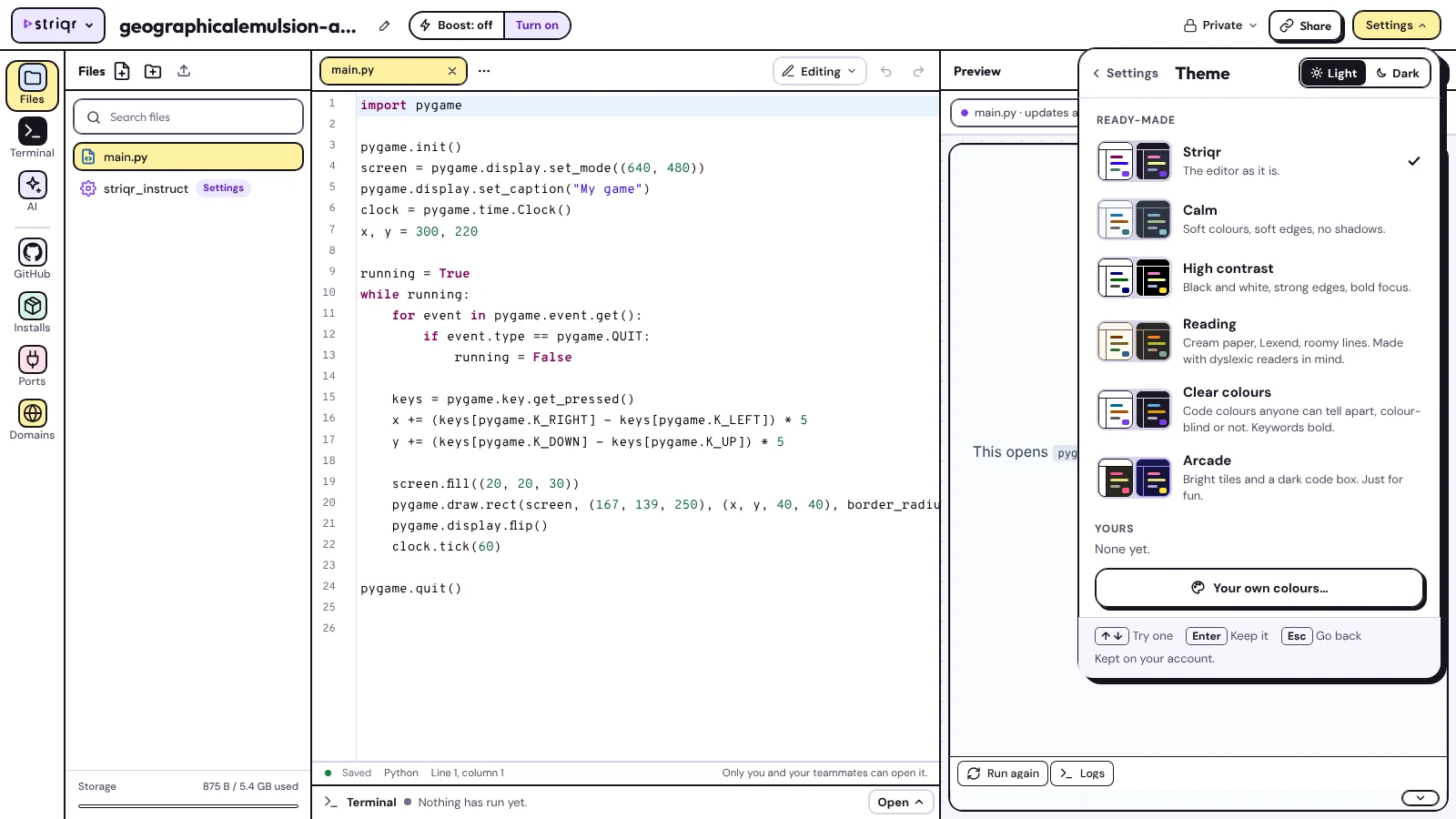
Point at one, or use the arrow keys, to try it on the editor. Enter or a click keeps it, and Esc goes back. Colours you'd already saved are under Your own colours…. When you're signed in, the theme is kept on your account, so it follows you to another computer. It's free for everyone, pupils too.
See who's in a project
Everyone in a project now shows as a face to the left of Share, ringed in their own colour. After four faces you'll see +N, and an eye counts the people who are only looking.
Each face has a card saying what that person is doing, like "Editing main.py, line 12". Go to opens their file at their line without moving your caret. Follow goes with them as they move. Typing, clicking in the code or opening a file stops it. On tablets and phones the faces fold into one button.
Guests who join with an edit link are now asked what others should call them, and show as "Sam (guest)" instead of "Guest 2". There's more on working together on the Code together page.